
 iCloud Accounts
 for Apple Devices
iCloud is the Apple service tied to an Apple ID. One login can hold photos, files, contacts, notes, and a backup of an iPhone, then show that same information on an iPad or a Mac signed into the same account.
A shop or a small team can keep a work Apple ID separate from a personal one. Product photos, invoices, and the shop phone backup stay on the business login. The private phone does not have to carry the shop library.
Format: Email : Password. As soon as the order is placed, you receive the credentials at that time. To order, contact SocialWorldHub on WhatsApp +923091774508, kamranqd786@gmail.com, or Telegram @Accountsdrop777.

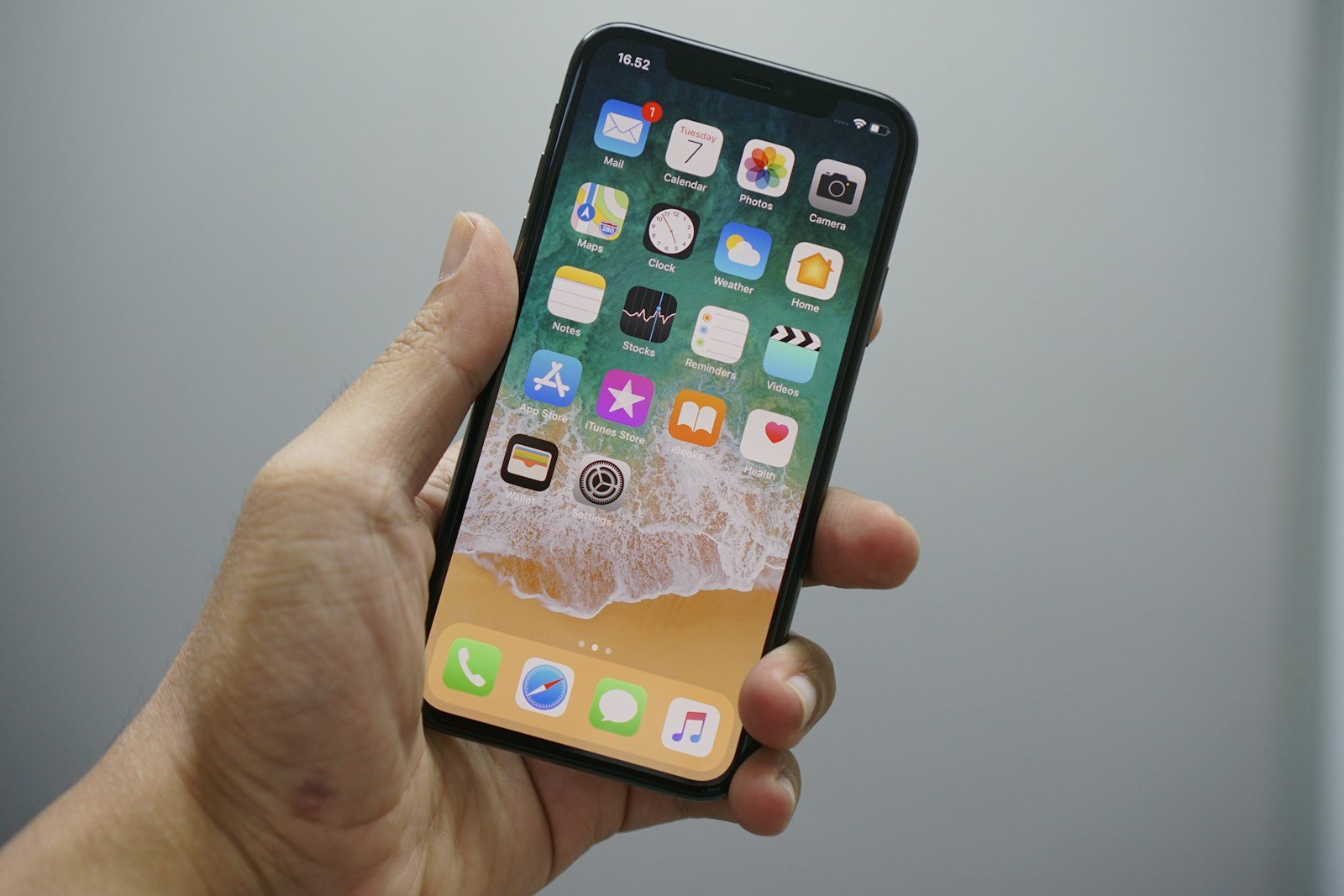
What an iCloud Login Holds
Photos are the part most people notice first. Pictures taken on an iPhone can upload to the iCloud Photos library, so a new phone signed into the same Apple ID can see them. A shop can keep product shots there instead of only on one camera roll.
iCloud Drive is the file side. A PDF, a price list, or a design can sit in Drive and open on another Apple device with that login. Contacts, calendars, notes, and reminders can sync the same way, so the desk iPad and the counter iPhone share one address book.
Backup is the safety copy of an iPhone. If the shop phone is replaced, a backup stored with the Apple ID is what you restore from. Find My is the map for devices signed into that account, which matters when a work iPhone or iPad leaves the counter.
Mail depends on the Apple ID. Some accounts use an @icloud.com address. Others sign in with a different email that was already the Apple ID. The email we send is the one that opens the account. We do not rename it into a new address after delivery.
An Apple ID, not a second phone
An iCloud account is an Apple ID with iCloud turned on for the services that Apple ID uses. You sign in on an iPhone, iPad, or Mac with the email and password. After that, the device can download what that account already stores and upload new photos or files you choose to keep in iCloud.
It is not a phone number by itself, and it is not a social profile. Customers do not follow an iCloud login the way they follow a Snapchat name. The value is the private library and the sync between devices the business owns. If you also want a public page, that is a different product. This page is the Apple login.
Storage on the account is the storage already attached to that Apple ID. Apple includes a small amount of iCloud storage, and paid storage adds room for more photos and backups. We do not print a gigabyte promise on this page. If you need a certain amount of space, say so when you order and we will tell you what is on the account before you pay.
Why a business keeps its own Apple ID
A personal Apple ID already has family photos, private notes, and the backup of someone's own phone. Mixing the shop into that login means product pictures sit next to personal ones, and a staff member who signs the shop iPad into a private account can see things they should not.
A separate work Apple ID draws a line. The counter iPhone, the photo iPad, and a Mac in the office can all use the shop login. When a person leaves, you change the password and the devices stay with the business. The photos and files do not walk out on someone's personal iCloud.
It also makes a replacement simpler. A dropped iPhone can be restored from the shop backup instead of from a staff member's private library. The new phone asks for the Apple ID. You enter the shop email and password, and the backup that belongs to the shop is the one on the list.
Photos, files, and the shop phone
Product photos are the everyday use. Take the picture on the shop iPhone, let it upload, and open the same library on the Mac when you need a larger screen to crop it. You are not emailing the photo to yourself or moving a cable across the desk every time.
Files follow the same idea. A supplier invoice saved to iCloud Drive can be opened on the device that is free, not only on the laptop where it was downloaded. Notes can hold a size chart or a closing checklist that more than one person on the shift should see, as long as those people are allowed to use the login.
The backup is the quiet part. Turn it on for the shop iPhone and leave the phone on Wi-Fi and power when the shop closes. The backup is there the day the screen cracks. Find My is the other quiet part. If the iPad used for card photos is missing, the account it is signed into is where you look, not a personal phone that was never connected to that tablet.
What stays on the device you choose
iCloud does not have to copy every switch. You can keep photos in iCloud and leave a personal-looking app signed out. On a shared shop device, sign in only the work Apple ID, and sign out at the end of the day if other people use that device for their own Apple ID. Two accounts on one phone is how a personal photo ends up in the shop library.
Where a small team uses it
A photographer or a clothing seller can keep the week's shots in one library and pull the best ones onto a computer later. A repair desk can keep a note of which phone is ready, stored in the work account rather than in one technician's pocket. A tutor with an iPad can keep class files in Drive so the same documents open at home on a Mac.
The team should agree who knows the password. One shared Apple ID is simpler than three personal logins fighting over the shop iPad. It is also a reason to limit the password to the people who actually set up devices. When someone should no longer have access, change the password and update the devices that stay. The email can remain the one customers never see. iCloud is usually behind the scenes.
Do not use the shop Apple ID as the personal login of the owner as well. The point of a second account is the split. Family purchases, personal photos, and private messages belong on the personal Apple ID. Stock photos and the shop backup belong on the work one.
What the login includes
Accounts are delivered as Email : Password. The email is the Apple ID. The password is the password for that login. You open Settings on an iPhone, or System Settings on a Mac, choose to sign in, and enter those two details. On the web, icloud.com uses the same Apple ID.
As soon as the order is placed, you receive the credentials at that time. Sign in once before you trust the account with a full photo library. Check that iCloud opens, that you can see Photos or Drive if those are in use, and that the email matches the one we sent. There is no price list on this page, and we do not add a storage size you did not ask about.
Apple can ask for an extra confirmation when a new device signs in. That is Apple's own check. We do not describe a way around it. If the sign-in stops and the email and password we sent are not enough, contact us with that email before you keep entering passwords. Do not post the password while you sort it out.
After you are signed in
On the shop iPhone, turn on the pieces you actually need. Photos if the camera roll should live with the account. iCloud Drive if the files should. Backup if this phone is the one you would want to restore. Leave off anything the shop does not use. Then take one test photo or save one test file and open it on a second device signed into the same Apple ID. If it appears, the sync is doing the job you bought the account for.
A practical way to start
Use one device first. Sign the counter iPhone into the work Apple ID and leave personal phones on their own logins. Take the photos you would have taken anyway. At the end of the day, open the library on the computer and see whether the pictures arrived. That single test tells you more than a long setup list.
Name files and albums in a way the next person can read. "Blue shirts March" is useful. A camera roll of untitled pictures is just a pile. The account stores what you put in it. It does not sort the shop for you.
Keep the email and password with the other business logins. Sign out of a shared Mac when the shift ends if that Mac is also used for personal Apple IDs. A shop device that stays on the work account is easier to trust than a laptop that switches accounts all day.
Before you place the order
Tell us how many iCloud accounts you need, and say if a device backup or a larger photo library is the reason. If you need a specific amount of iCloud storage, write that in the first message so we can confirm what the Apple ID already has. We answer with what is ready and which payment methods you can use.
After delivery, the check is short. Sign in, confirm the email, turn on the iCloud switches you need, and move one real photo or file across two devices. The login follows the same format every time: Email : Password.
Contact for Order
There is no price list on this page. Send the quantity and say you want iCloud accounts. Mention storage only if a certain amount of space matters for the order.
Format: Email : Password. To order, contact SocialWorldHub on WhatsApp +923091774508, kamranqd786@gmail.com, or Telegram @Accountsdrop777.